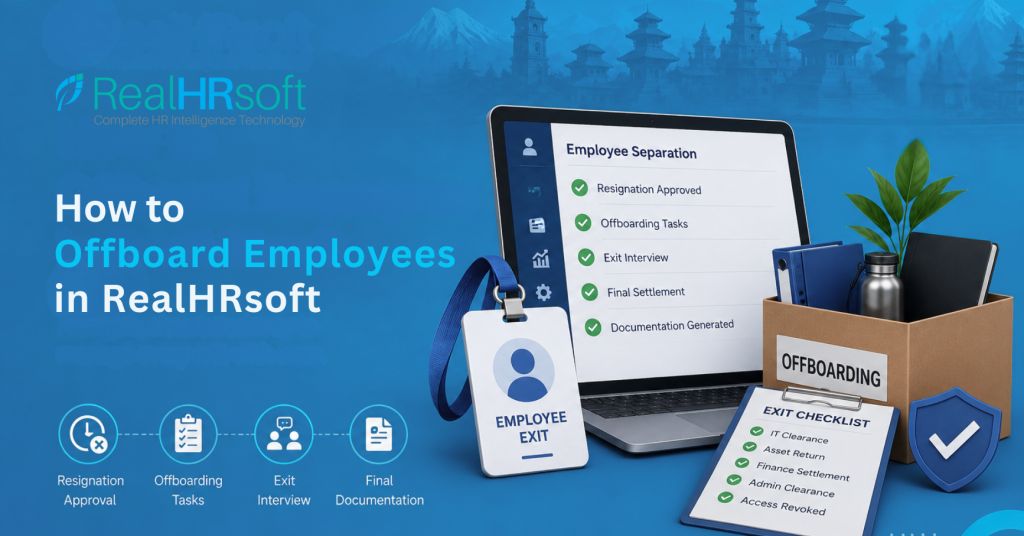
How to Offboard Employees in RealHRsoft
Overview
For many organizations, offboarding remains one of the least systematic parts of the employee lifecycle. RealHRsoft’s Employee Separation module brings resignation, approval, offboarding tasks, and exit interviews into a single tracked workflow against the employee’s record.
Problem
Once an employee submits a resignation, HR is often left manually coordinating across departments — IT to disable user access, Finance to calculate the final settlement, Admin to collect office equipment, and someone to remember to schedule an exit interview — often over email, with no single record of what’s been cleared and what hasn’t. Offboarding is the final experience an employee has with an organization, and it often shapes how they remember their entire employment journey. Delays in receiving final salary, experience letters, or relieving letters can affect a departing employee’s ability to join a new employer or meet financial obligations
Step-by-Step Process
- Initiate the Resignation When an employee resigns, the request is logged under HRIS > Resignation. It appears as pending and can be approved or denied by HR, with the option to forward it into the off-boarding process once approved.
- Configure Resignation Approval Levels Before resignations start coming in, set the approval chain under Settings > Resignation Approval — defining which levels (supervisor, HR, department head) must sign off, and assigning the employees responsible for each level.
- Select the Separation Under HRIS > Employee Separation > Offboarding > Create New, fill all the separation details, confirm the correct exit category is applied — resignation, termination, end of contract, or retirement — since this affects final settlement and documentation requirements.
- Trigger the Off-Boarding Task Checklist Once approved, the employee moves into Employee Separation > Off-boarding, where a pre-built task checklist (configured under Settings > Task Templates) tracks every clearance action required — IT access revocation, equipment return, Finance settlement, Admin clearance — each assigned to the responsible department.
- Run the Exit Interview Exit interview questions are pre-configured under Settings > Exit Interview Question Set. HR runs the interview against this standard set and logs responses directly against the employee’s record, and can view the list of exit interview candidates from HRIS Reports > Exit Interview.
- Generate Final Documentation Use Letter Template to generate the employee’s experience or relieving letter directly from the system, pulling accurate tenure and role data from their HRIS profile — no manual redrafting.
- Close the Record Once all off-boarding tasks are marked complete, the employee moves from Current Employee List to Past Employee List, and their full history — contracts, payroll, leave, appraisal — remains stored and audit-ready.
How RealHRsoft Helps
RealHRsoft’s Employee Separation module turns offboarding from a scattered, email-driven process into a single tracked workflow. Resignation, approval, off-boarding tasks, and exit interviews all sit against the same employee record so HR always knows exactly which clearances are outstanding and who owns them.
The HRIS module carries the employee’s full history of contracts, leave, payroll, appraisals into the exit record automatically, so final settlement and leave encashment calculations are based on accurate data, not a manually reconstructed file. Combined with Letter Template for instant, accurate exit documentation, HR leaders spend less time chasing paperwork across departments and more time focusing on retention insight and workforce planning while RealHRsoft handles the administrative execution of every exit, accurately and on record.
Conclusion
Automate your offboarding — every clearance tracked, every exit audit-ready. Book a Demo Now.