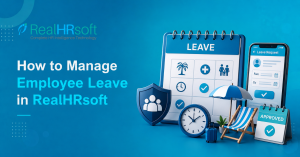
How to Manage Employee Leave in RealHRsoft
Leave management in Nepal isn’t just an HR convenience it is the mandatory requirement under the Labour Act 2074 having certain entitlements, limits, and encashments rule that HR teams must track for every employee, every year. RealHRsoft’s Leave Management Module, paired with the Employee Self Service (ESS) Portal, lets organisations configure their exact leave policy once and have it automatically govern every employee’s balance, request, and encashment calculation from that point forward without any spreadsheets and no manual recalculation.
The Problem
Most Nepali HR teams still track leave on Excel sheets manually. The moment an employee applies for leave, HR has to cross-reference how many days the employee has already used this fiscal year. With caps like 90 days for home leave and 45 days for sick leave under the Labour Act 2074, even one miscalculation creates a compliance gap: an employee paid for leave they were not entitled to, or denied leave they had legally earned. At fiscal year end, the problem adds up. Leave encashment has to be calculated for every employee individually, based on their unused, carry-forward-eligible balance, with no margin for error since this directly affects final payroll.
In order to remain compliant, the leave settings have to be set up in a very precise manner as per company policies and following the provisions of the Labour Act 2074. For organizations that need to set up or modify their employee leave policy, the solution provided by RealHRsoft provides a structured setup process.
Setting Up and Running Leave in RealHRsoft
Step 1 — Configure your Leave Policy in Master Settings
Under HR → Leave → Settings → Master Settings, define every leave type your organisation grants: home leave, sick leave, maternity leave (14 weeks), paternity leave (15 days), mourning leave (13 days) etc.
Step 2 — Map the policy to employment types and divisions
Depending upon the organizational context, Leave entitlements may differ by employment type (permanent vs. part-time vs. contract) or by division. RealHRsoft lets you apply different leave masters to different employee groups, so a part-time or contractual hire and a permanent staff member are governed by the correct rule automatically — no manual flagging required.
Step 3 — Let leave balances calculate themselves
Once the policy is configured, every employee’s leave balance reflects it in real time. There’s nothing further for HR to calculate if the system applies accrual, caps, and carry-forward rules the moment the fiscal year resets.
Step 4 — Employees request leave through Employee Self Service
From the ESS Portal, an employee opens Leave → Request Leave, selects the leave type, and submits their dates.
Step 5 — Approval flows straight to the supervisor
The request appears under HR’s Leave → Request queue (and the supervisor’s queue, where applicable) for approval, forwarding, or denial. Every status is visible to the employee under their own History tab, so there’s no need to “check with HR”.
Step 6 — Handle exceptions without breaking the record
If a manager needs to apply leave on behalf of someone who’s travelling or unreachable, HR can use Offline Leave. If a request needs to be withdrawn, Cancel Request keeps a clean audit trail rather than deleting the record.
Step 7 — Encashment and bulk actions at fiscal year end
At Fiscal Year end, HR pulls the Leave Encashment Report, which already reflects each employee’s eligible, capped, carry-forward-adjusted balance per the policy configured in Step 1. For mass updates (new joiners, bulk corrections), the Import function updates leave records for many employees in a single upload.
How RealHRsoft Helps
This is the difference between managing leave and merely recording it. RealHRsoft’s Leave Management Module lets HR configure Labour Act-aligned policy, and the system enforces it automatically for every employee thereafter.
The Employee Self Service Portal removes HR from the day-to-day request cycle entirely, giving employees real-time visibility into their own balance and status. Together, these two modules turn fiscal year-end into a one-click encashment report. RealHRsoft doesn’t just store leave data; it replaces the manual calculation work HR used to do with policy-driven automation, freeing HR leaders to focus on strategy instead of spreadsheets.
Automate your Leave Management
Managing employee leave should be simple, accurate, and fully compliant with Nepal’s Labour Act—not dependent on spreadsheets and manual calculations. With RealHRsoft’s Leave Management Module and Employee Self Service (ESS) Portal, you can automate leave policies, streamline approvals, maintain complete audit trails, and generate accurate leave balances and encashment reports with ease.
Book a personalized demo today to see how RealHRsoft can simplify leave management, improve compliance, and save valuable HR time.
RealHRsoft | Emphasize Strategy. Automate HR. | A Product of Aayulogic
Frequently Asked Questions
- How does RealHRsoft help manage employee leave?
RealHRsoft automates the entire leave management process, from configuring leave policies and calculating leave balances to processing employee requests, approval workflows, and leave encashment. The system applies company policies automatically, eliminating manual calculations and reducing administrative effort. - Can RealHRsoft be configured according to Nepal’s Labour Act 2074?
Yes. RealHRsoft allows organizations to configure leave policies in accordance with the Labour Act 2074 and their internal HR policies. Leave types, eligibility, accrual rules, carry-forward limits, encashment rules, and approval workflows can all be customized to match organizational requirements. - Can employees apply for leave online?
Yes. Employees can submit leave requests through the Employee Self Service (ESS) Portal or the RealHRsoft mobile application. They can view their available leave balance, track request status, and access their leave history without contacting HR. - Does RealHRsoft support leave approval workflows?
Yes. Leave requests are automatically routed to the appropriate supervisor or approver based on the organization’s approval hierarchy. Managers can approve, reject, or forward requests while maintaining a complete audit trail. - How are leave balances calculated in RealHRsoft?
Once the leave policy is configured, RealHRsoft automatically calculates leave accruals, deductions, carry-forward balances, and encashment eligibility based on predefined rules. HR teams no longer need to update leave balances manually. - Can different employee groups have different leave policies?
Yes. RealHRsoft supports multiple leave policies for different employment types, departments, branches, grades, or business units. This allows organizations to apply the correct leave entitlements automatically for each employee group. - Does RealHRsoft support leave encashment?
Yes. The system automatically calculates eligible leave encashment based on configured policies and unused leave balances. HR can generate leave encashment reports at fiscal year-end without manual calculations. - Does RealHRsoft integrate leave management with payroll?
Yes. RealHRsoft integrates leave data with payroll, allowing approved leave, unpaid leave, and leave encashment to be reflected accurately during payroll processing.