
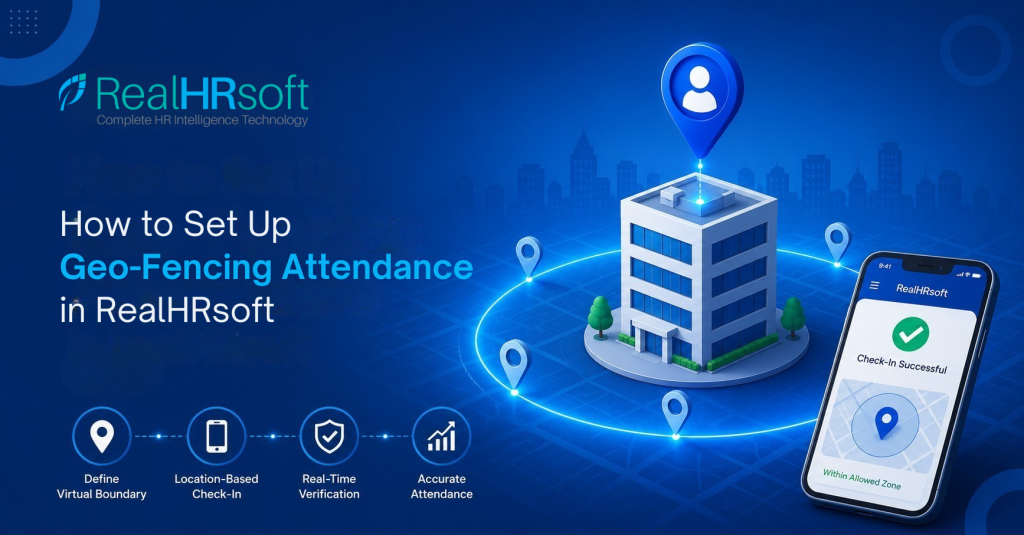
How to Set Up Geo-Fencing Attendance in RealHRsoft
What Is Geo-Fencing?
Geo-Fencing is a location-based attendance control feature in RealHRsoft. It lets HR define a virtual boundary around a physical location — an office, a branch, a project site, or a client location — and restricts employee check-ins to within that boundary. When an employee opens the RealHRsoft mobile app and checks in, the system verifies their GPS coordinates against the configured zone in real time. If they’re inside — check-in is accepted. If they’re outside — check-in is blocked.
RealHRsoft supports two boundary types. A circular fence draws a radius around a single center point, suitable for most office and branch locations. A Custom fence lets you plot multiple points to trace an irregular boundary, useful for factory compounds, construction sites, or any non-circular plot.
What does Geo-Fencing Attendance solve?
Expensive hardware for small branches. Most head offices already have biometric devices — ZKTeco, HikVision — that handle ghost attendance reliably. The problem is branches. A branch with 3 to 5 staff doesn’t justify the cost of buying, installing, and maintaining a biometric device just for them. Geo-Fencing replaces the device entirely — the RealHRsoft mobile app becomes the check-in point, and the geo-fence verifies that the employee was physically at the branch location when they punched in. No hardware purchase, no device maintenance, no IT setup.
Field teams with no fixed location. For project-site workers, field sales teams, and employees who move between client locations, there’s no fixed device to check in on at all. Geo-Fencing creates a virtual boundary around each site — head office, branch, project site, or client location — so every check-in is location-verified.
Travel and off-site attendance with full location data. Some employees legitimately check in from outside a fixed zone — inter-branch travel, client visits, field audits. When they do, RealHRsoft captures their exact GPS coordinates (longitude and latitude) at the time of check-in, and routes the attendance for supervisor approval and/or HR. So there’s a precise, timestamped location record for every outside-zone check-in — not just a flag that says they were off-sit
How to Configure Geo-Fencing Attendance?
- Create a geo-fence. Go to Attendance > Settings > Geo-Fence Area and click Create New Fence.
- Choose Circular for standard office or branch locations. Click the location on the map — latitude and longitude populate automatically — then set the radius. The default is 100 meters; the range is 10 to 5,000 meters.
- Choose Custom for irregular sites. Plot at least three boundary points on the map to trace the exact perimeter.
Enter the Fence Name, Fence Type, Branch, and Division. Set the Active Days and Active Hours for when the fence should apply. Toggle the status to Active and save.
- Assign the fence to employees. From the geo-fence list, assign the fence to employees individually or in bulk. Set an Applicable From date. For project or temporary sites, also set an Applicable To date so the fence deactivates automatically when the project closes.
- Set the outside-fence policy. During assignment, decide what happens if an employee checks in from outside the zone. Two options:
- Block completely — the check-in is rejected. Best for office-based staff with no legitimate reason to be off-site.
- Allow with approval — the check-in is accepted but flagged for HR or supervisor review before it’s confirmed. Best for field staff or employees who travel regularly.
- Brief employees on location permissions. The RealHRsoft mobile app will prompt employees to allow location access on first use. Location permission is required — the app cannot process a check-in without it. Employees should be informed before the feature goes live on their devices.
- Monitor via the Geolocation Report. Go to Attendance > Reports > Geolocation Report to review all location-verified check-ins. Each record shows the employee name, date and time, fence name, the exact longitude and latitude of the check-in, distance from the required zone in meters, and whether the check-in was inside or outside the boundary — for every check-in, not just the ones that failed. Export to Excel for payroll review or audit documentation.
Why Geo-Fencing Attendance Matters for Businesses?
A biometric device at every location isn’t always practical — or worth the cost. For a branch with three employees in Pokhara or a project site in Hetauda, the hardware investment, installation, and ongoing maintenance of a dedicated device is hard to justify. Geo-Fencing lets those locations use the same attendance system as head office, without the device. Each employee checks in from the RealHRsoft mobile app, the geo-fence verifies their location, and the record feeds directly into the same Attendance Module that drives punctuality, lost hours, and payroll — no separate system, no manual transfer.
For field staff — sales teams, site engineers, delivery personnel — Geo-Fencing also serves as a location tracking layer. Every check-in records the employee’s exact GPS coordinates, so HR and supervisors know not just when staff punched in, but precisely where they were at that moment. For organisations managing field teams across multiple locations, this replaces the informal “supervisor confirms by WhatsApp” model with a timestamped, coordinate-level record for every attendance entry.
Get Started with RealHRsoft Today
See how RealHRsoft keeps every check-in — office, branch, or field site — location-verified and payroll-ready. Book a demo.
RealHRsoft │ Emphasize Strategy. Automate HR. │ A Product of Aayulogic Inc.